Shared Bindings
Trigger Bindings
This package maps physical controller inputs to robot commands so
RobotContainer stays lean. All bindings live in TriggerBindings; tunable
parameters (response curves, speed scales, deadbands) live in
TriggerBindingsConfig.
Controllers
The robot uses two Logitech F310 controllers (XInput mode) connected via USB:
| Port | Role | Primary responsibility |
|---|---|---|
| 0 | Driver | Driving, speed tiers |
| 1 | Operator | Gameplay state transitions (fire, harvest) |
Driver controller layout
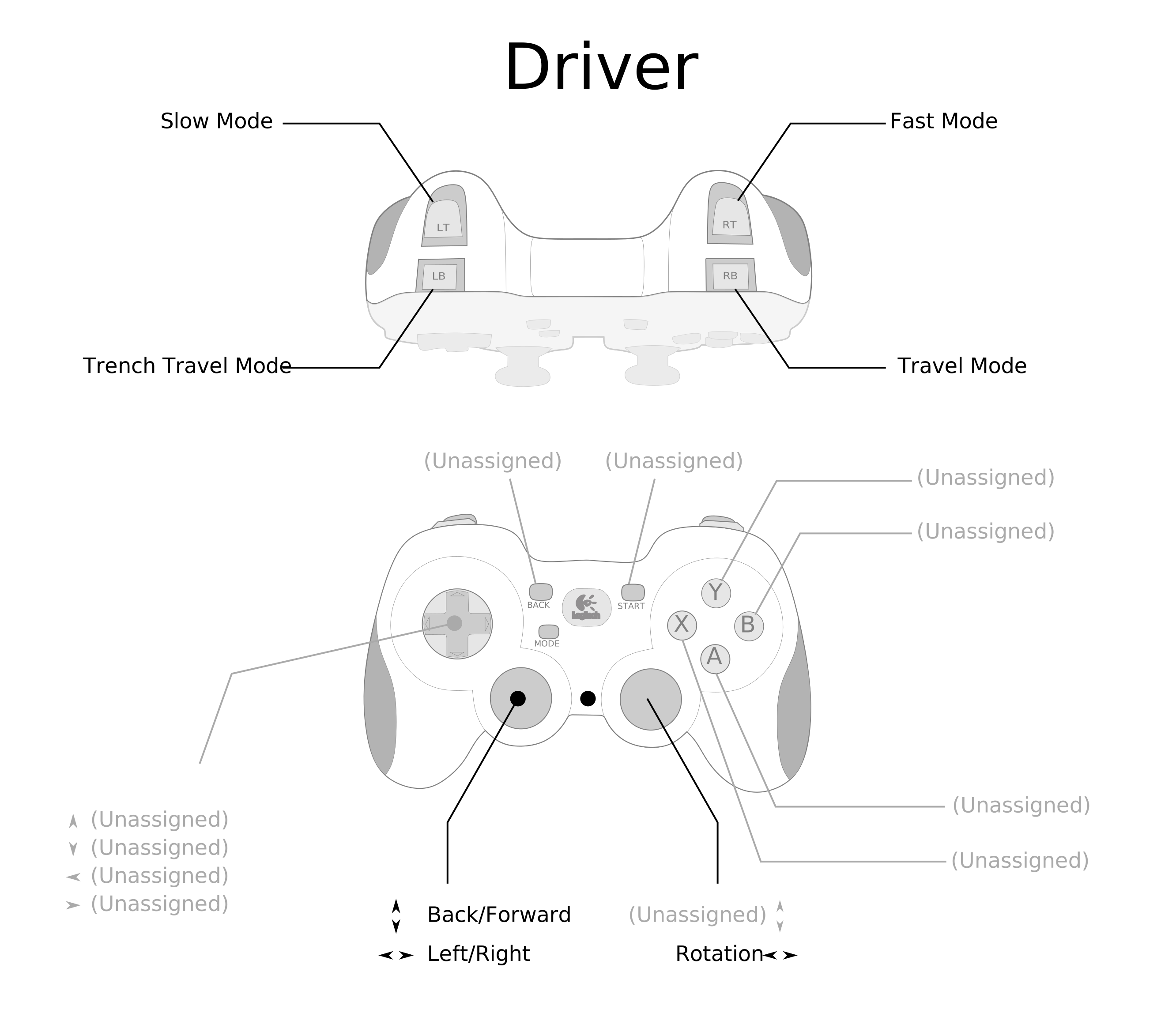
The driver controller handles field-relative driving and speed management:
- Left stick — translation (Y = forward/back, X = strafe).
- Right stick X — rotation (omega).
- Right trigger — sprint (100 % max speed).
- Left trigger — slow/precision mode (40 % max speed).
- No trigger held — normal speed (80 % max speed).
Each axis passes through a configurable response curve
(leftStickYResponseExponent, leftStickXResponseExponent,
rightStickXResponseExponent) and a joystick deadband before the speed scale is
applied.
Operator controller layout
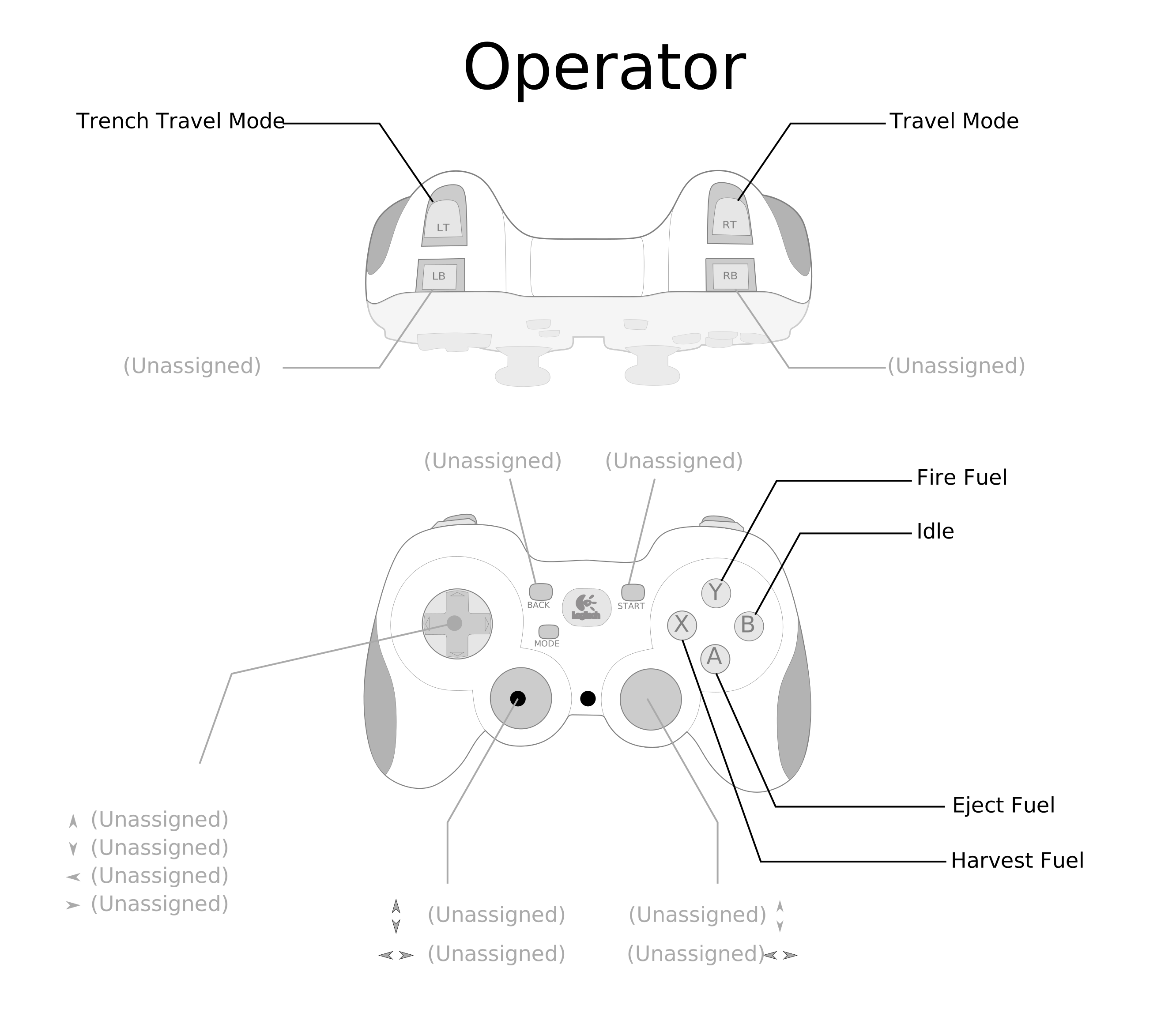
The operator controller manages gameplay state transitions:
| Input | Action |
|---|---|
| Right trigger | Enter FIRE_READY state |
| Left trigger | Enter HARVEST_READY state |
| B button | EJECT (active while held) |
| Y button | Return to IDLE |
Triggers use onTrue so the state change persists after the button is released.
The B button uses whileTrue because ejecting should stop as soon as the
operator lets go.
Tuning mode
When tuningEnabled is set to true in TriggerBindingsConfig, the driver
controller switches to subsystem test mode:
- A dashboard chooser (
TriggerBindings/TestSubsystem) selects which subsystem is under test (Shooter, Indexer, Feeder, Intake, Turret, or Harvester). - A button — reverse / move to minimum setpoint.
- B button — forward / move to maximum setpoint.
- X button — run a full SysId characterization sweep (~60 seconds).
Default commands are not registered in tuning mode so mechanisms stay wherever the test commands leave them.
Controller health monitoring
TriggerBindings.checkControllerHealth() runs once per robot loop (wired
through RobotContainer.periodic()). It performs two checks per controller:
- Connection check — Uses
DriverStation.isJoystickConnected()and fires aDriverStation.reportWarning()once when a controller transitions from connected to disconnected. - Stale-input detection — During teleop, tracks whether any axis on the
controller has been non-zero. If the controller reports as connected but all
axes have been exactly
0.0for ~1 second (50 cycles), a warning fires: "Driver controller is connected but has sent no input for ~1 second. USB data pipe may be frozen — try pressing buttons or reboot the DS laptop." This catches the failure mode where the Windows USB data pipe freezes during autonomous and the DS still shows the controller as present.
The following values are recorded to AdvantageKit for post-match replay:
| Key | Type | Description |
|---|---|---|
TriggerBindings/DriverConnected |
boolean | DS reports joystick on driver port |
TriggerBindings/OperatorConnected |
boolean | DS reports joystick on operator port |
TriggerBindings/DriverInputActive |
boolean | At least one driver axis is non-zero |
TriggerBindings/OperatorInputActive |
boolean | At least one operator axis is non-zero |
Controller troubleshooting
Known issue: controllers appear connected but produce no input
During FRC matches, the Driver Station may show controllers as connected (visible in the USB tab) while no input data actually reaches the robot. Autonomous works fine because it does not read controller inputs, but teleop is completely unresponsive. Pressing F1 (rescan) and restarting the Driver Station application do not fix this — only a full laptop reboot resolves it.
Root cause: Windows USB Selective Suspend. During autonomous (when the DS is not actively polling controller inputs for driving), Windows power management suspends the USB data pipe. When teleop begins, the pipe fails to wake. The DS still shows the device because the USB device descriptor is cached, but the actual input stream is dead.
This is a well-documented issue on Chief Delphi affecting Logitech F310 controllers and many other USB gamepads.
Preventing USB sleep — Windows configuration
Perform all three of these steps on the Driver Station laptop:
1. Disable USB Selective Suspend in Power Options
- Open Control Panel → Power Options.
- Click Change plan settings on the active plan.
- Click Change advanced power settings.
- Expand USB settings → USB selective suspend setting.
- Set both On battery and Plugged in to Disabled.
- Click OK.
2. Disable per-device USB power management
- Open Device Manager.
- Expand Universal Serial Bus controllers.
- For every USB Root Hub and Generic USB Hub entry: a. Right-click → Properties → Power Management tab. b. Uncheck "Allow the computer to turn off this device to save power." c. Click OK.
- Repeat for every hub entry — there are usually 3–6.
3. Set the Windows Power Plan to High Performance
- Open Settings → System → Power & battery (or Power Options).
- Set Power mode to Best performance.
- Set Put the computer to sleep to Never for both battery and plugged in.
- Turn off Energy Saver.
Pre-match controller checklist
Before every match, the drive coach or a pit crew member should verify:
- Wiggle both sticks on each controller and confirm the corresponding entries light up green in the DS USB tab.
- Press a few buttons and confirm the button indicators respond.
- If a controller appears grayed out or does not respond to input, immediately reboot the laptop — do not rely on F1 (rescan) or restarting the DS application.
- Plug in the laptop charger at the player station. Windows is less aggressive about USB power management when plugged in.
- Lock controllers into their USB slots in the DS (drag to the correct port number and double-click to lock).
Hardware tips
- Use a powered USB hub to prevent voltage sag from causing intermittent disconnects, especially if the laptop also powers the Ethernet adapter via USB.
- Prefer direct USB-A ports on the laptop over USB-C adapters or docks. Adapters add another layer where power management can interfere.
- Use short, high-quality USB cables (under 6 feet). Long or damaged cables increase the chance of signal degradation and intermittent disconnects.
- Consider using USB port savers (short USB-A male-to-female extensions) to reduce wear on the laptop's built-in ports.
- Ensure the Logitech F310 back switch is set to X (XInput mode), not D (DirectInput). XInput provides better driver support on Windows.
F1 rescan limitations
The F1 key (or the rescan button in the DS USB tab) only rescans the USB device list — it does not power-cycle the USB stack or reset the data pipe. If the device descriptor is cached but the data pipe is frozen, F1 will show the controller as present but input will remain dead. A full laptop reboot is the only way to reset the USB host controller and restore the data pipe.
When connected to FMS, the DS does not auto-scan for joystick changes while enabled. Use F1 to trigger a manual scan if a controller was physically unplugged and reconnected during a match.
Key classes
| Class | Purpose |
|---|---|
TriggerBindings |
Wires controller buttons/axes to commands |
TriggerBindingsConfig |
Tunable parameters for response curves, speed tiers |